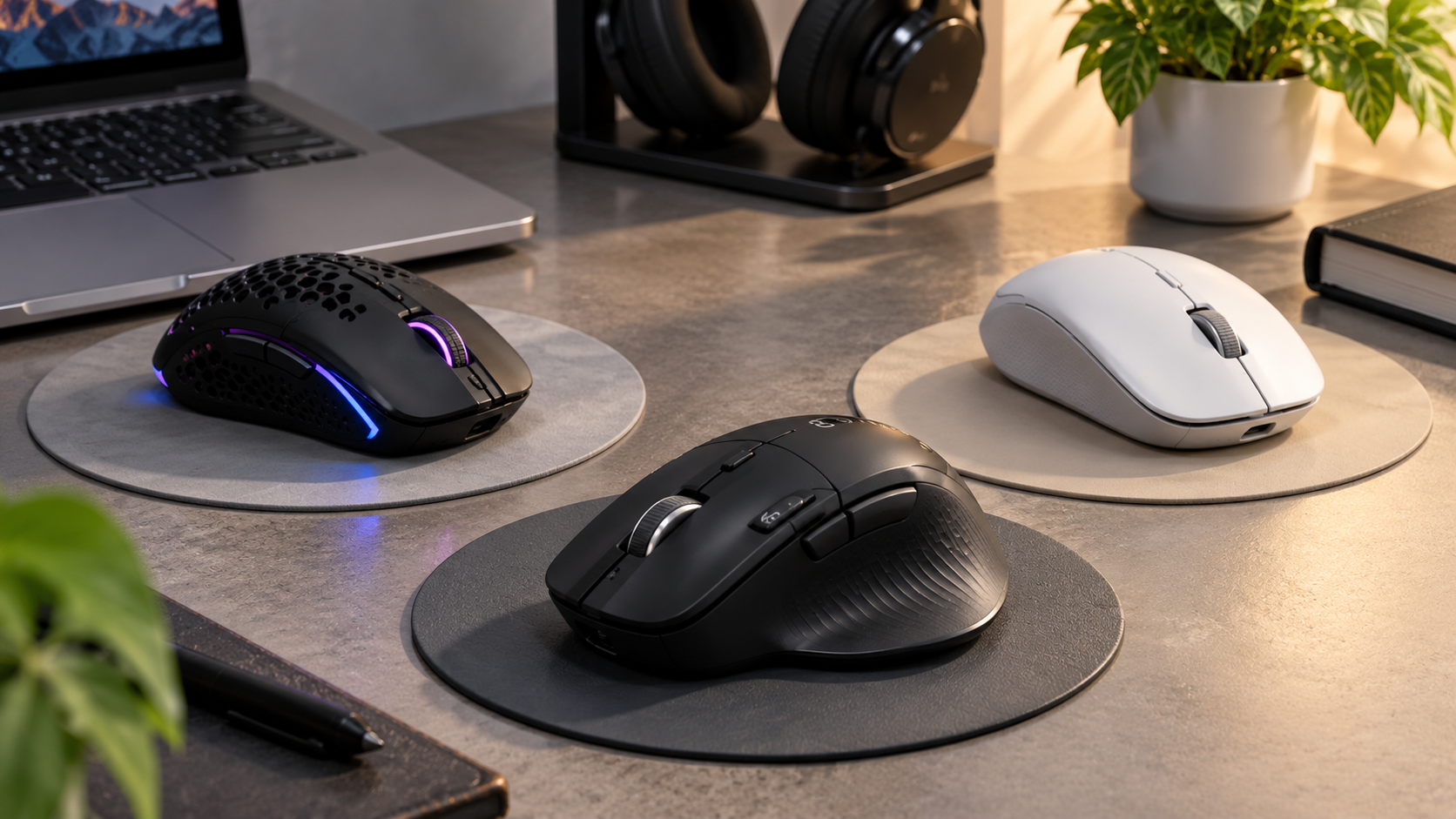
Looking for the best wireless mouse under ₹1000 in India? Budget wireless mice can look similar, but they differ in connection type, click noise, size, battery requirements and warranty. This guide compares five options from Logitech, HP and Portronics to help you choose a mouse that suits your laptop, desktop or study setup.
Whether you need a silent wireless mouse for office work, a Bluetooth mouse for a laptop, a compact mouse for travel or an affordable option for everyday browsing, start by matching the connection and design to the way you work.
Price check before publishing: The models below are candidates from the supplied draft. Amazon prices, stock and colour variants can change. Verify the current price and exact product listing in each Smartech Finds product block before claiming that a mouse costs less than ₹1,000.
Quick picks: which wireless mouse should you consider?
| Product | Best suited for |
|---|---|
| Logitech M221 Silent | Quiet work, studying and shared spaces |
| Logitech M171 | Compact everyday use and travel |
| Logitech M186 | Basic browsing, documents and spreadsheets |
| HP 240 Bluetooth Mouse | Laptops and Chromebooks with Bluetooth |
| Portronics Toad 23 | Buyers looking for a very low-cost option |
How we selected these budget wireless mice
We focused on factors that matter when buying a wireless mouse for less than ₹1,000:
-
Price and availability: The exact model must be available within the budget at the time of publication.
-
Connection type: We included both USB-receiver and Bluetooth options.
-
Comfort and portability: Size and shape matter if you carry a mouse in a laptop bag or use it for several hours.
-
Useful features: Quiet clicks, adjustable sensitivity and battery convenience can make a real difference.
-
Warranty and support: Check the current warranty terms for the exact listing.
-
Evidence: We have not conducted laboratory tests. Any battery-life figures or technical claims should be attributed to the manufacturer, not presented as our own test results.
1. Logitech M221 Silent: Best for quiet work
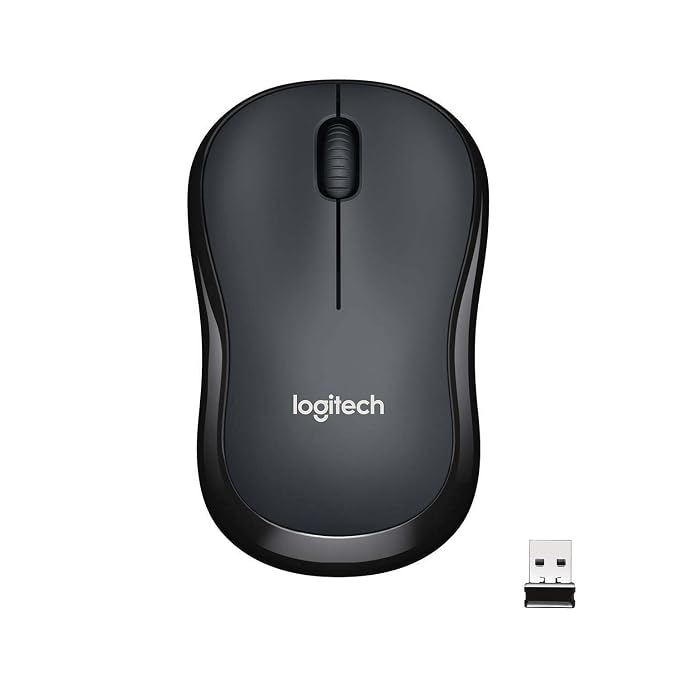
Logitech M221 Silent Wireless Mouse
A compact, ambidextrous mouse with SilentTouch buttons and an 18-month battery. It’s the easiest recommendation for office, college and shared spaces.
More Details (Specifications, Pros & Cons)
The Logitech M221 Silent is the option to consider if mouse-click noise bothers you or the people around you. Logitech’s SilentTouch technology is designed to reduce click noise, which can be useful in libraries, shared offices, classrooms or when working late at night.
Its USB receiver makes setup straightforward on compatible computers, and its compact, ambidextrous shape can suit both left- and right-handed users. It is a 2.4GHz receiver-based mouse, however, so it is not the right choice if you specifically need a Bluetooth mouse without a dongle.
2. Logitech M171: Best compact mouse for travel
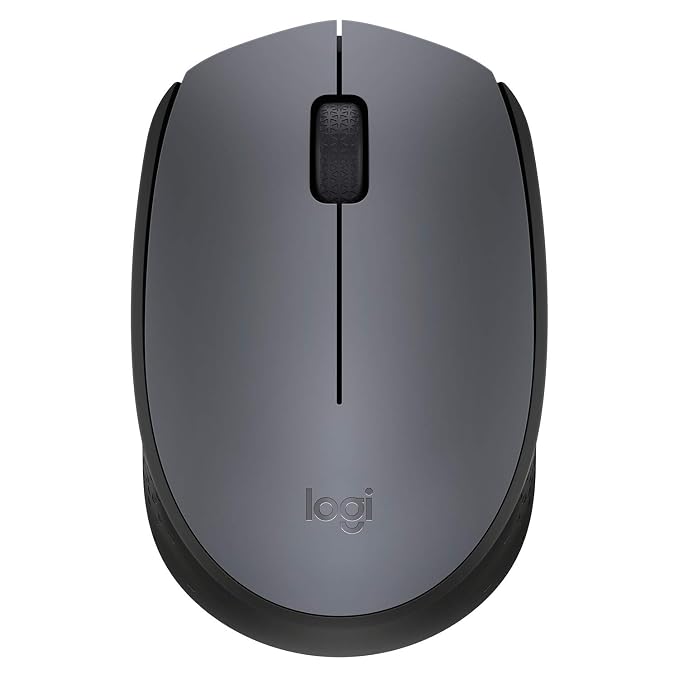
Logitech M171 Wireless Mouse
A no-fuss Logitech at an everyday price. It has over 51,000 ratings with a 4.5 average on Flipkart, which shows how widely it’s used.
More Details (Specifications, Pros & Cons)
The Logitech M171 is a straightforward wireless mouse for people who want something small to carry with a laptop. Its receiver-based connection is simple to set up, making it a practical option for everyday browsing, documents and basic work away from a desk.
Unlike the M221 Silent, the M171 is not designed around quiet clicks, so expect normal mouse-click sounds. Its compact size can be convenient for travel, but people with larger hands may prefer a fuller-sized mouse for long sessions.
3. Logitech M186: Best for everyday value
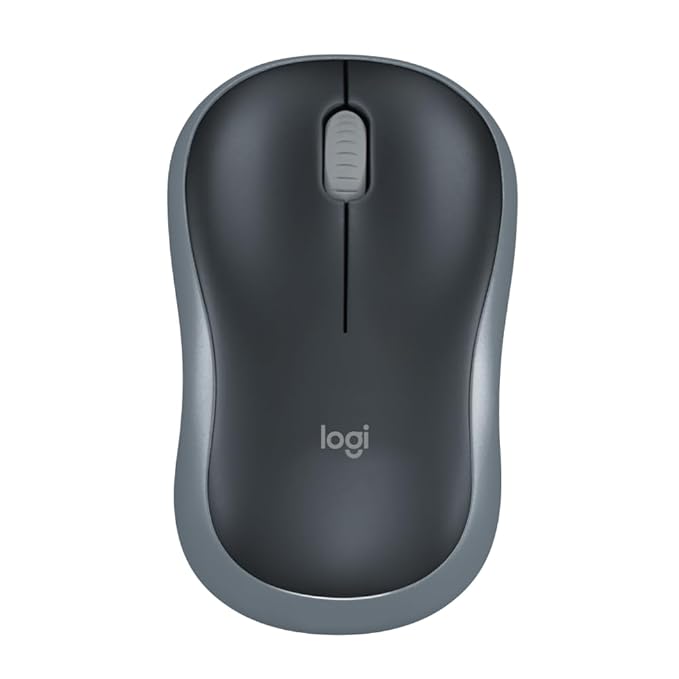
Logitech M186 Wireless Mouse
A simple, dependable wireless mouse from a trusted brand. It has no extras, but it covers everyday browsing, documents and spreadsheets without fuss.
More Details (Specifications, Pros & Cons)
The Logitech M186 is a basic option for browsing the web, writing assignments, working in spreadsheets and general desktop use. It is worth considering if you want a familiar, plug-and-play style of wireless mouse without paying for specialist features.
This model uses a USB receiver rather than Bluetooth, and its clicks are not silent. If you mainly need a reliable mouse for routine tasks, those trade-offs may be acceptable. If you regularly work in quiet spaces, compare it with the M221 Silent before deciding.
4. HP 240 Bluetooth Mouse: Best for Bluetooth laptops
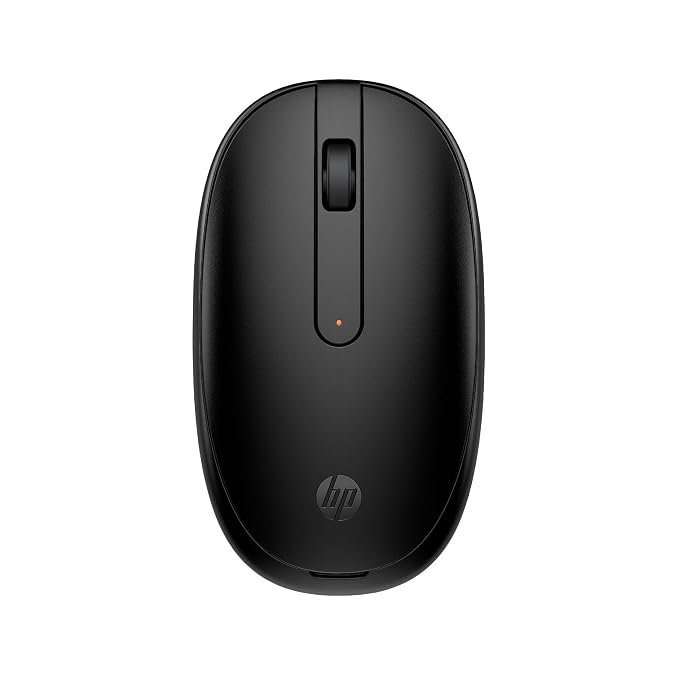
HP 240 Bluetooth Wireless Mouse
A slim, dongle-free Bluetooth mouse from a major brand, backed by a 3-year warranty on the Amazon India listing. It suits laptops, tablets and Chromebooks, where you’d rather keep your USB port free.
More Details (Specifications, Pros & Cons)
The HP 240 Bluetooth Mouse is the choice to investigate if you want to connect without occupying a USB port. A Bluetooth mouse can be especially useful on a slim laptop, Chromebook or tablet with limited ports, provided the device supports compatible Bluetooth connections.
The main trade-off is that Bluetooth must be available and enabled on your computer. If you are setting up an older desktop without Bluetooth, a receiver-based mouse may be easier. Also, do not assume that every HP 240 listing has the same warranty or colour-specific price.
5. Portronics Toad 23: Best ultra-budget candidate
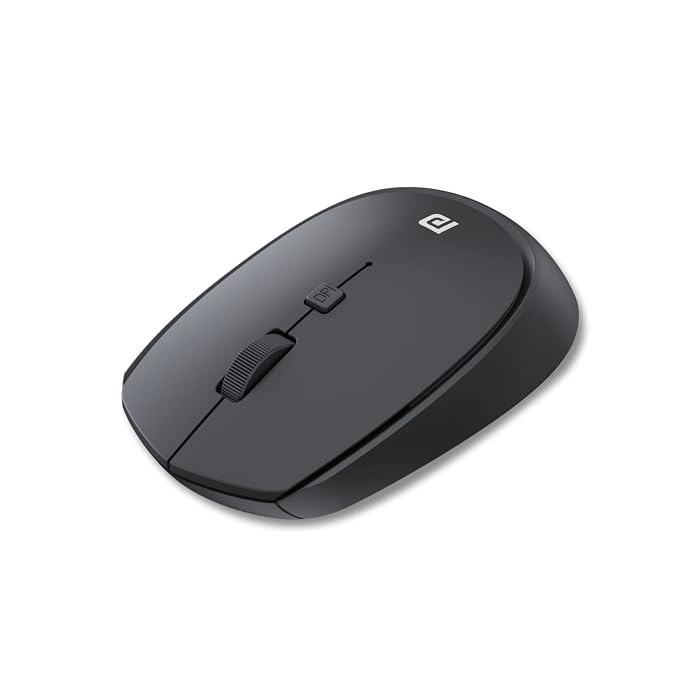
Portronics Toad 23 Wireless Optical Mouse
The cheapest way to go wireless, and a proven seller. It holds a 4.0 rating from over 16,000 ratings and the #1 Best Seller tag on Amazon.in. It’s the only mouse on this list with adjustable DPI, but you’ll need to buy a battery separately
More Details (Specifications, Pros & Cons)
The Portronics Toad 23 is worth considering if your priority is spending as little as possible on a wireless mouse for basic tasks. The supplied draft identifies adjustable DPI as one of its distinguishing features, which may be useful if you like changing cursor sensitivity.
At this price level, check the small details before ordering. The battery may not be included, and a very low price is less useful if the mouse does not fit your hand or work reliably with your computer. Read recent buyer feedback for recurring problems rather than relying only on the overall rating.
2.4GHz wireless mouse vs Bluetooth mouse: which is better?
A 2.4GHz wireless mouse usually comes with a small USB receiver. You plug in the receiver and the mouse connects to it. This can be a convenient, plug-and-play choice for many desktop PCs and laptops, but it uses a USB port.
A Bluetooth mouse connects directly to a compatible computer or tablet without a separate receiver. That keeps a USB port free, but your device must have Bluetooth and support the mouse.
Neither connection type is automatically better for everyone:
-
Choose a 2.4GHz mouse if you want a simple receiver-based setup and have a compatible USB port.
-
Choose a Bluetooth mouse if you want to avoid a dongle and your laptop or tablet supports Bluetooth.
-
If you switch between devices, check whether a dual-mode mouse is available within your budget.
What to look for when buying a wireless mouse under ₹1,000
1. Do you need silent clicks?
A silent mouse can be helpful in a library, shared room, office or during calls. If click noise is not an issue, a standard mouse may offer better value for your needs. Do not assume a mouse is silent unless the manufacturer or exact listing confirms it.
2. Battery-powered or rechargeable?
Many affordable wireless mice use replaceable AA or AAA batteries. Check whether the battery is included and look for an on/off switch or automatic sleep feature. Rechargeable mice can reduce the need to replace batteries, but they may cost more and their internal batteries can lose capacity over time.
3. How much DPI do you need?
DPI describes how sensitive the mouse is to movement. For everyday browsing, documents and spreadsheets, a typical 1,000–1,600 DPI mouse is sufficient for many users. Higher DPI is not automatically better; comfort and predictable tracking matter more for ordinary work.
4. Size, weight and grip
A small mouse is easy to carry, but it may feel cramped if you have larger hands or work for long periods. If possible, compare the dimensions and shape before buying. For long daily sessions, comfort should matter more than a small difference in price.
5. Compatibility with your laptop
Check the operating systems listed by the manufacturer and the ports available on your computer. Receiver-based mice need a compatible USB port or adapter. Bluetooth mice need compatible Bluetooth support. If you use a MacBook, Chromebook or tablet, confirm compatibility with the exact device.
6. Warranty and seller details
Read the warranty information on the exact product page. Listings can differ by seller, colour or bundle. Keep the invoice and check the return policy before ordering.
Common mistakes to avoid
-
Buying the wrong listing: Check the product title and model number; bundles and accessories can change the price.
-
Forgetting the battery: Verify whether the battery is included.
-
Assuming every wireless mouse uses Bluetooth: Many use a USB receiver instead.
-
Choosing only by DPI: A higher number does not guarantee a more comfortable or reliable mouse.
-
Trusting old prices: Sale prices and stock change. Check the current listing before buying.
-
Ignoring recent reviews: Look for repeated reports of connection drops, scroll-wheel issues or button failures.
How to set up a wireless mouse
For a USB-receiver mouse
-
Insert the battery and switch the mouse on.
-
Plug the USB receiver into a compatible port.
-
Wait a few seconds for the computer to detect it.
-
Move the mouse to check that the pointer responds.
For a Bluetooth mouse
-
Switch on the mouse and activate pairing mode according to its instructions.
-
Open Bluetooth settings on your computer.
-
Select the mouse from the available devices.
-
If pairing fails, check the battery, remove any old pairing entry and try again.
If the cursor lags or jumps
-
Replace or recharge the battery.
-
Move the receiver closer to the mouse if possible.
-
Try a mouse pad if the surface is reflective or unsuitable.
-
Check for wireless interference and reconnect the device.